
Read a G1 with your smartphone
On a smartphone or tablet, the app can read a G1 gauge for you, using the camera. It recognises the gauge from its QR code, reads the measurement and attaches the photo to it. You do not need an account: anyone can read the gauge on site and send the measurement to the person monitoring it.
Before you start
- Camera reading works on G1, G1.1 and G1.2 gauges. The G1+ gauge is read by eye: see Record a G1 or G1+ reading.
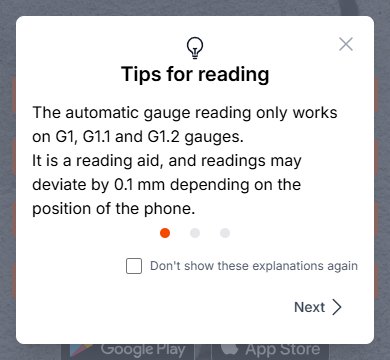
- It is a reading aid: depending on the position of the phone, the value may differ by 0.1 mm from what you would read by eye (see "Reading tips" below).
- You need a smartphone or tablet: reading cannot be started from a computer.
In the browser or with the Saugnac app
There are two ways to read a gauge:
| In the phone's browser | Saugnac app | |
|---|---|---|
| Installation | none: open saugnac.app | download it from the App Store or Google Play |
| Choice of camera | made by the browser, sometimes the wide-angle camera: you then need to switch camera (see below) | the main lens is selected automatically |
| Permissions | requested by the browser, for the saugnac.app website | requested by the phone, the first time you use the app |
To start reading:
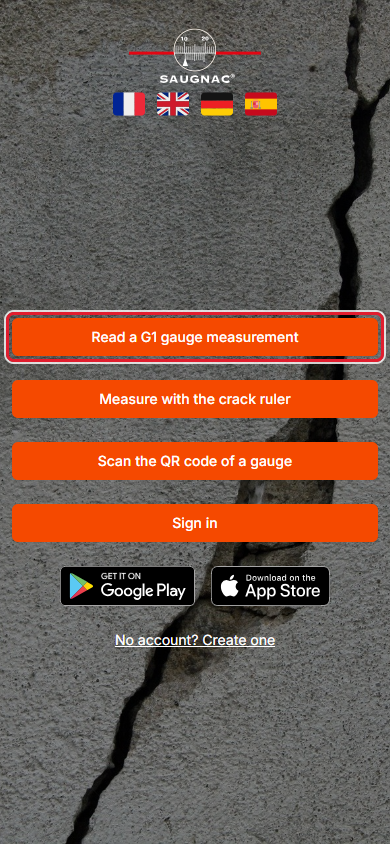
- without an account: on the home page, tap Read a G1 gauge measurement;
- with an account: open the menu, then Read a G1 gauge; or, in the Add a measurement form of a G1 gauge, tap Automatic reading next to the measurement. In this case, the app checks that you are reading the gauge of the form.
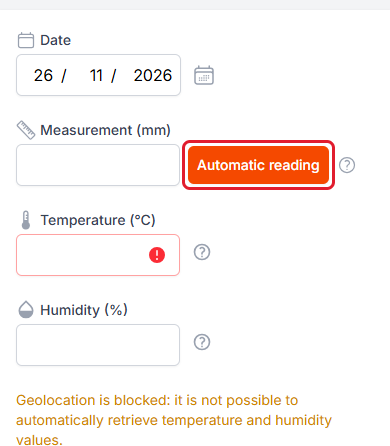
Read the gauge
- Open saugnac.app on your phone (or the Saugnac app), then tap Read a G1 gauge measurement.
- Read the Tips for reading, then tap Next. There are three screens:
- reading only works on G1, G1.1 and G1.2 gauges, with a possible deviation of 0.1 mm;
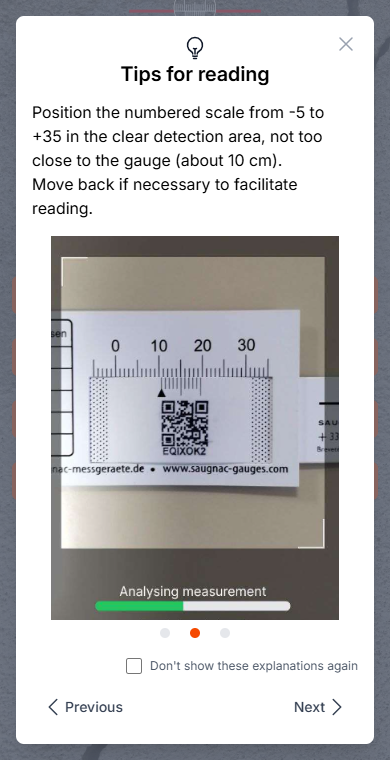
- where to place the gauge scale on the screen, and how far away;
- how to switch camera ⇄ and turn on the flash ⚡.
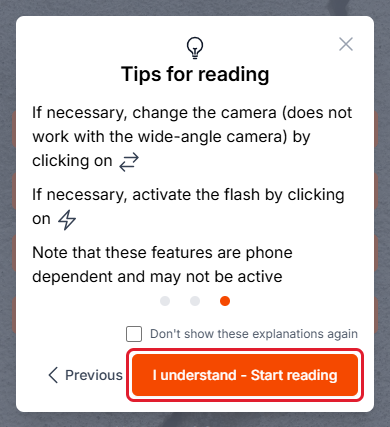
- Tap I understand - Start reading. The first time, the phone or the browser asks for access to the camera: accept (see "Allow the camera and location").
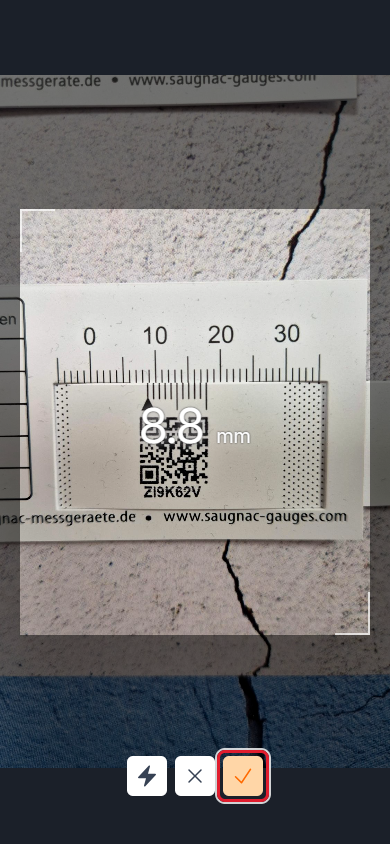
- Aim at the gauge (see "Reading tips" below). The app displays "Searching Saugnac QR Code…", then "Analysing measurement…" with a progress bar. The value read is then displayed in large figures on the image. Check it at a glance against the gauge, then tap the tick ✓. To start again, tap ✕.
Reading tips
- Place the numbered scale (from −5 to +35) in the clear area of the screen. The QR code of the gauge must be visible.
- Hold the phone about 10 cm from the gauge. Too close, the image is blurred: move back a little.
- Stand directly in front of the gauge, with the phone parallel to the wall. Seen from an angle, another vernier line seems to coincide and the reading may vary by 0.1 mm: this is the parallax error, the same as when reading by eye.
- In a dark place, tap ⚡ to turn on the flash (if your phone allows it).
Which way to hold the phone
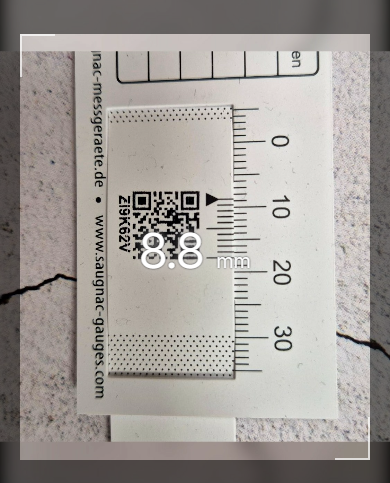
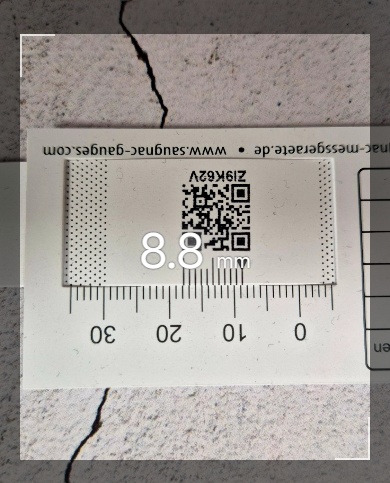
The direction of the gauge does not matter. The app reads it whether it is horizontal, vertical or upside down. If the gauge had to be installed in a particular position (horizontal crack, wall corner, ceiling…), there is no need to turn the phone or twist yourself: hold it upright as usual and aim at the gauge as it is.
Submit or add the measurement
After the tick, the Last measurement page shows the Measurement read and its photo (1). Perform another measurement (2) starts a new reading. The button at the bottom (3) depends on your situation.
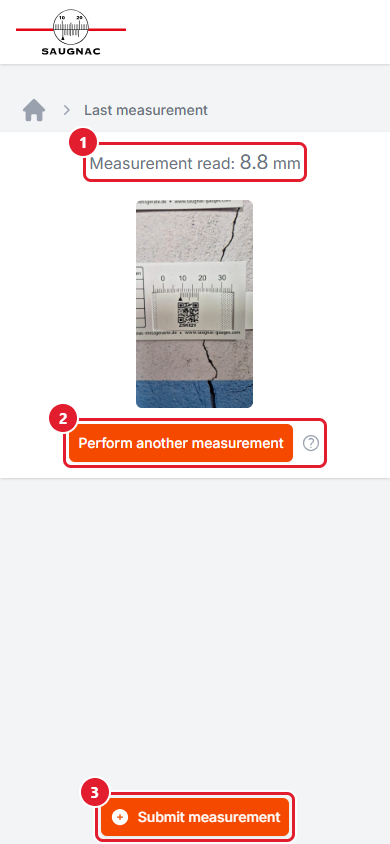
Without an account: Submit measurement. This button appears when the person monitoring the gauge has allowed measurements to be submitted without an account.
- Tap Submit measurement: the Submit a measurement form opens, with the measurement read (1) and the photo already attached.
- Enter the Temperature (°C) (2) if it is not filled in automatically (see "Allow the camera and location"). Add the humidity and a note if you wish.
- Tap Submit measurement (3). → The message "The measurement has been submitted for approval." appears. The person monitoring the gauge receives the measurement and approves it.
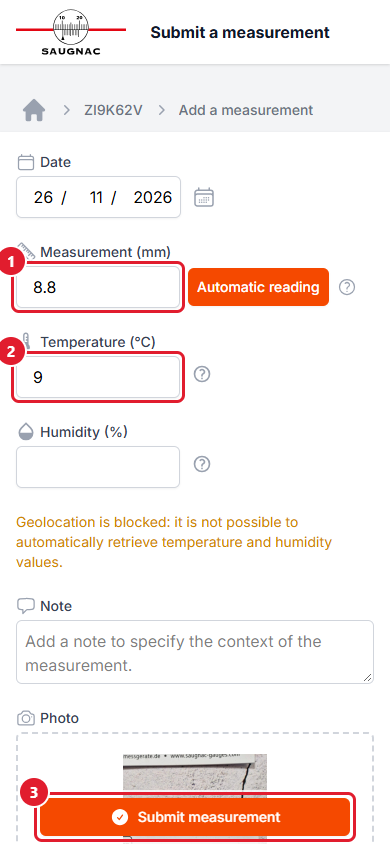
With an account: Add this measurement. The Add a measurement form opens, with the measurement read and the photo. Complete it as you would for a reading entered by hand (see Record a G1 or G1+ reading). If you are not signed in, the app first asks you to sign in.
If the reading does not work
Switch camera
In the browser, this is the most common cause. Most smartphones have several rear cameras, and the browser sometimes picks the wide-angle camera. It cannot focus at close range: the image stays blurred and reading does not start. After a few seconds, the app suggests switching camera.
- Tap ⇄ at the bottom of the screen: the app switches to the next camera.
- Repeat until you get a sharp image of the gauge. The cycle also includes the front camera: keep going until you are back on a rear camera. → Your choice is saved: the next reading opens directly on this camera.
The ⇄ button only appears if the phone has several cameras. In the Saugnac app, the main lens is selected automatically: you do not need to switch camera.
Other cases
- The image is blurred: move back a little (about 10 cm) and check that the lens is clean.
- The image is dark: tap ⚡ to turn on the flash.
- The gauge is not recognised: check that it is a G1, G1.1 or G1.2 gauge, and that its QR code is fully in the image. After 30 seconds, a link "Difficulty reading? Consult our detailed help" appears.
- "The application couldn't accurately read the measurement": tap ✕, then start reading again.
- "You are reading the … gauge when you have selected the … gauge.": from the form of a gauge, you are aiming at another gauge. Aim at the right one, or start reading again from the home page.
If reading still does not work, read the gauge by eye and enter the value: see Record a G1 or G1+ reading.
Allow the camera and location
- The camera is essential for reading. If access has been refused, reading cannot start; in the browser, the message "Unable to access camera" appears.
- Location is optional. It is used to fill in the temperature and humidity automatically, from the local weather, in the measurement form. If it is refused, the message "Geolocation is blocked" appears: enter the temperature by hand.
A permission that has been refused is not requested again: you need to restore it in the settings. In the browser, it is set in two places: the phone allows the browser, and the browser allows the saugnac.app website. After a change, reload the page or restart the app.
Saugnac app on iPhone or iPad
- Open Settings, then Apps and Saugnac (on older versions of iOS: Settings, then Saugnac, in the list of apps at the bottom).
- Turn on Camera.
- Tap Location, then choose While Using the App.
If location remains blocked, check that it is turned on for the phone: Settings → Privacy & Security → Location Services.
Saugnac app on Android
- Open Settings, then Apps and Saugnac. Shortcut: long press on the Saugnac icon, then ⓘ.
- Tap Permissions.
- For Camera and for Location, choose Allow only while using the app.
Safari on iPhone or iPad
- On the saugnac.app page, tap the icon to the left of the address bar, then Website Settings.
- For Camera and for Location, choose Allow (or Ask).
You can also set these permissions for all websites: Settings → Apps → Safari, Settings for Websites section. For location, also check Settings → Privacy & Security → Location Services → Safari Websites: While Using the App.
Chrome on Android
- On the saugnac.app page, tap the icon to the left of the address, then Permissions (or Site settings).
- Allow Camera and Location.
- If access remains blocked, check that Chrome itself is allowed: phone Settings → Apps → Chrome → Permissions.
Chrome on iPhone or iPad
- Open Settings, then Apps and Chrome.
- Turn on Camera and, under Location, choose While Using the App.
- Go back to saugnac.app and start reading again: Chrome asks for access again, accept.
Firefox
- On Android: on the saugnac.app page, tap the padlock to the left of the address to see the website's permissions. Also check that Firefox is allowed: phone Settings → Apps → Firefox → Permissions.
- On iPhone or iPad: Settings → Apps → Firefox, then turn on Camera and set Location.
Samsung Internet and other browsers
The principle is the same:
- in the browser, allow the camera and location for the saugnac.app website (usually with the icon to the left of the address, or in the browser settings, under site permissions);
- in the phone settings, check that the browser has access to the camera and location (Settings → Apps → the browser → Permissions).